
Conditions
A condition is one version of the study. This page shows you how to add two or more, how each participant gets assigned to one, and how to look at any two side by side to check that they differ only where you meant them to.
The bystander example has two conditions, defended and silent. Someone mocks a painting in both. In defended another user steps in, and in silent nobody does.
Add conditions
- In the builder, press Settings.
- Find the Conditions card.
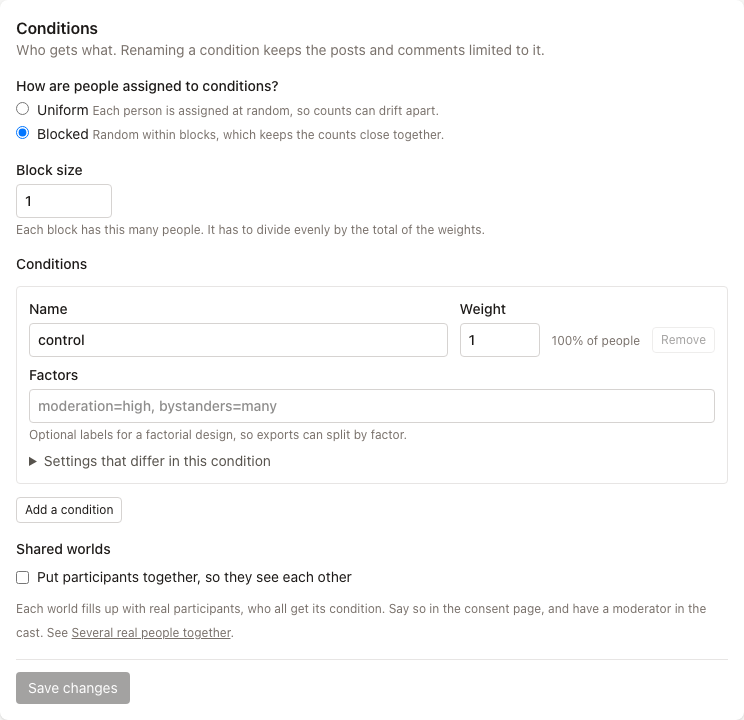
- Under Conditions, press Add a condition and give it a Name. Names use lowercase letters, numbers, dashes, and underscores. They're what you'll see in your data.
- Set each condition's Weight. With weights of 1 and 1, half of people go to each, and the card shows the percentage. With 2 and 1, two thirds go to the first.
- Press Save changes.
Renaming a condition later keeps the posts and comments that were limited to it.
Factors is optional. For a factorial design, label each condition, for example moderation=high, bystanders=many, and your export can split by factor.
How people are assigned
You have to choose a method. Truman has no default here, because the choice shapes your analysis.
- Uniform: each person is assigned at random, so counts can drift apart.
- Blocked: random within blocks, which keeps the counts close together. Set a Block size. It has to divide evenly by the total of the weights, so with two equal conditions use 2, 4, 6, and so on.
Every assignment is recorded with its method and its probability. A returning participant always gets the condition they already have.
Test participants are the exception: they choose their condition and don't use up places in a block.
What can differ
Posts and comments
Open Details under any post or comment in the builder. Under Shown in, tick the conditions it belongs to. None ticked means all of them.
This is the most common way to build a manipulation: write the feed once, then limit one comment to one condition. In the feed, limited items are marked Only in with the condition's name.
Settings
On the Conditions card, each condition has Settings that differ in this condition. Open it to change, for that condition only:
- the Platform style and how Comment boxes appear
- Feed order and Comment order, and whether people can choose them
- how far back the feed reaches
- whether flagged content or blocked accounts are hidden
- any single feature, on or off
Leave a setting blank and the condition follows the rest of the study. The summary line counts how many settings differ, so you can see at a glance that a condition changes two things and no more.
Turning a feature off in one condition is how you test the feature itself. Like counts on in one condition and off in the other, for example.
The cast's pictures
When a study has more than one condition, each person on the Cast page has Pictures by condition. Someone can have a different profile picture in one condition, such as the same photo with a frame on it. The vaccine frames example works this way.
Moderation, stories, and spaces
Each removal, label, ban, automatic rule, and other piece of scripted moderation has Only in these conditions. So do stories. A space can be limited with Only in. In each case, none ticked means every condition.
Beats
A beat can list the conditions it happens in. Leave the list out and it happens in all of them. See Making things happen.
Compare two conditions
At the top of the builder:
- Choose a condition under Condition.
- Choose another under Compare with.
The two feeds appear side by side, at the same moment in the study. Move the time slider and both move together. You can edit in either one.
Do this before every launch
Scroll both feeds from the start of the study to the end and look for anything that differs that shouldn't.
The same controls are on the read-only preview of a saved version. On the Studies page, press See the feed beside a version.
Conditions that people move into
Some designs change a participant's condition partway through. A SMART design re-randomizes people who haven't responded by day 2, for example. Truman calls these decision points, and they're written with the beats.
A condition that people only reach through a decision point gets a Weight of 0, so nobody starts in it. The card then says Only at a decision point. See Making things happen.
In shared worlds
When several real participants share a world, the whole world gets one condition, drawn when its first person joins. See Several real people together.
In your data
participants.csv has each person's condition. The codebook lists every condition with the settings and features it had, for each version of the study. See Your data.