
Consent, surveys, and debriefing
This page covers everything around the feed: the consent page with your own text, a debriefing page if you want one inside Truman, and an exit that hands each participant to your survey with their ID attached.
All of it is on one card. In the builder, press Settings and scroll to Study flow.
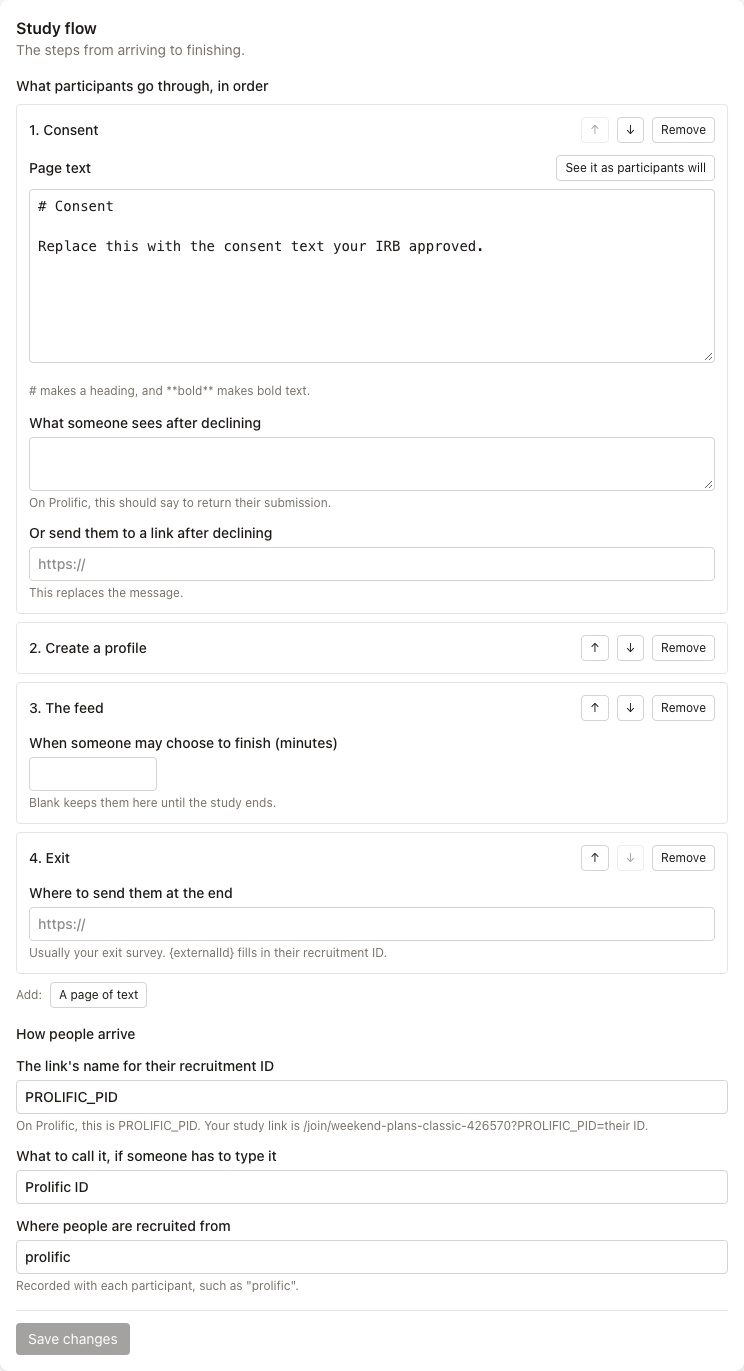
The steps
The card lists What participants go through, in order. There are five kinds of step:
| Step | What the participant does |
|---|---|
| Consent | Reads your consent page and agrees or declines |
| Create a profile | Chooses a username and sets up their profile, as on a real site |
| A page of text | Reads a page you wrote, then continues |
| The feed | Uses the site |
| Exit | Finishes, and is sent on if you gave a link |
Use the buttons after Add: to add a step, the move up and move down buttons on a step to reorder, and Remove to take one out. A study can have several pages of text, and one of each other step.
Press Save changes on the card when you're done.
The consent page
Under the Consent step is a box labelled Page text. A new study has placeholder text there, which you replace with the text your IRB approved. A # at the start of a line makes a heading, and **bold** makes bold text. Press See it as participants will to check it.
If you try to launch while the placeholder is still there, the Launch window warns you. You have to tick This is only a test, so launch it anyway to go on.
When someone declines, it's treated as a withdrawal. Their data is deleted, and that ID can't enter the study again. Your codebook counts how many people declined. Two fields decide what they see next:
- What someone sees after declining is a short message. On Prolific, it should say to return their submission.
- Or send them to a link after declining replaces the message with a redirect.
If consent happens in a survey before Truman, people who don't agree should end there and never reach your site. In that case, remove the Consent step.
How long they stay in the feed
The study's length in days is on the Feed card. Once it has passed, a participant still in the feed is moved on to the steps after it on their next visit, so they still get your debriefing and survey.
To let people leave earlier, fill in When someone may choose to finish (minutes) on The feed step. If you leave it blank, they stay until the study ends.
Debriefing
Truman has no special debriefing step. Instead, you have two places to put one:
- Inside Truman: add A page of text, move it after The feed, and write the debriefing in its Page text box. Everyone who gets past the feed sees it before the exit.
- In your survey: put it at the end of the survey that the exit sends people to.
See Ethics for what a debriefing needs to cover.
How people arrive
Under How people arrive on the same card:
- The link's name for their recruitment ID. On Prolific this is
PROLIFIC_PID. It has to match the link exactly, capital letters included. - What to call it, if someone has to type it. If the ID isn't in the link, Truman asks for it, using this label.
- Where people are recruited from. It's recorded with each participant, such as "prolific".
Participants never make a password or give an email address. The same link gets them back in on a later day.
Sending people to a survey
On the Exit step, fill in Where to send them at the end with your survey's link. Put placeholders where the IDs go:
https://YOUR-ORG.qualtrics.com/jfe/form/SV_XXXX?PROLIFIC_PID={externalId}&USER_ID={participantId}| In the link | Becomes |
|---|---|
{externalId} | Their recruitment ID, such as their Prolific ID |
{participantId} | The ID in your Truman export, which isn't their Prolific ID |
Include both. USER_ID is what you'll use to match survey answers to study data without handling Prolific IDs.
Keep the names neutral
Participants can see the names in the address bar, so keep them neutral if your study has a cover story.
Press Try this link with a test ID under the field. It opens your survey the way a participant's link would, with a test ID filled in.
In Qualtrics, open Survey flow, add an Embedded Data element at the very top, and give it two fields named exactly PROLIFIC_PID and USER_ID, with their values left empty. Other survey tools work the same way if they can read a value from their link.
And back to Prolific
So people get credit without typing a code, copy the redirect link from Completion paths in Prolific. In Qualtrics, set End of Survey to redirect to that link.
Truman's Recruit on Prolific page shows you the exact link to paste. With no survey link on the exit, it sends people back to Prolific itself. See Running a study.
A survey before Truman
Make the survey your study URL in Prolific, save PROLIFIC_PID in it as embedded data, and have its End of Survey redirect to your study link with that ID on the end. Use a second survey for after Truman.
Check the whole path
Survey tools and Prolific change, so test with their preview links before you launch. Go from the first link to the last with a made-up ID, then confirm it shows up in your survey data. Use a new ID each time, because finishing locks that ID out.
One last thing: your survey data will now contain Prolific IDs. Remove that column before you share it.