
Your first study
This page walks you through building a small study from start to finish. By the end you'll have sample people and posts, and a link you can open to go through the study as a participant would. Nobody else can reach it.
You need to be signed in to the admin app. On hosted Truman that's app.truman-research.org/admin. If your lab hasn't applied yet, do that first: see Your lab on hosted Truman. You don't have to wait for approval, though. Everything on this page works while your lab is waiting.
1. Start the study
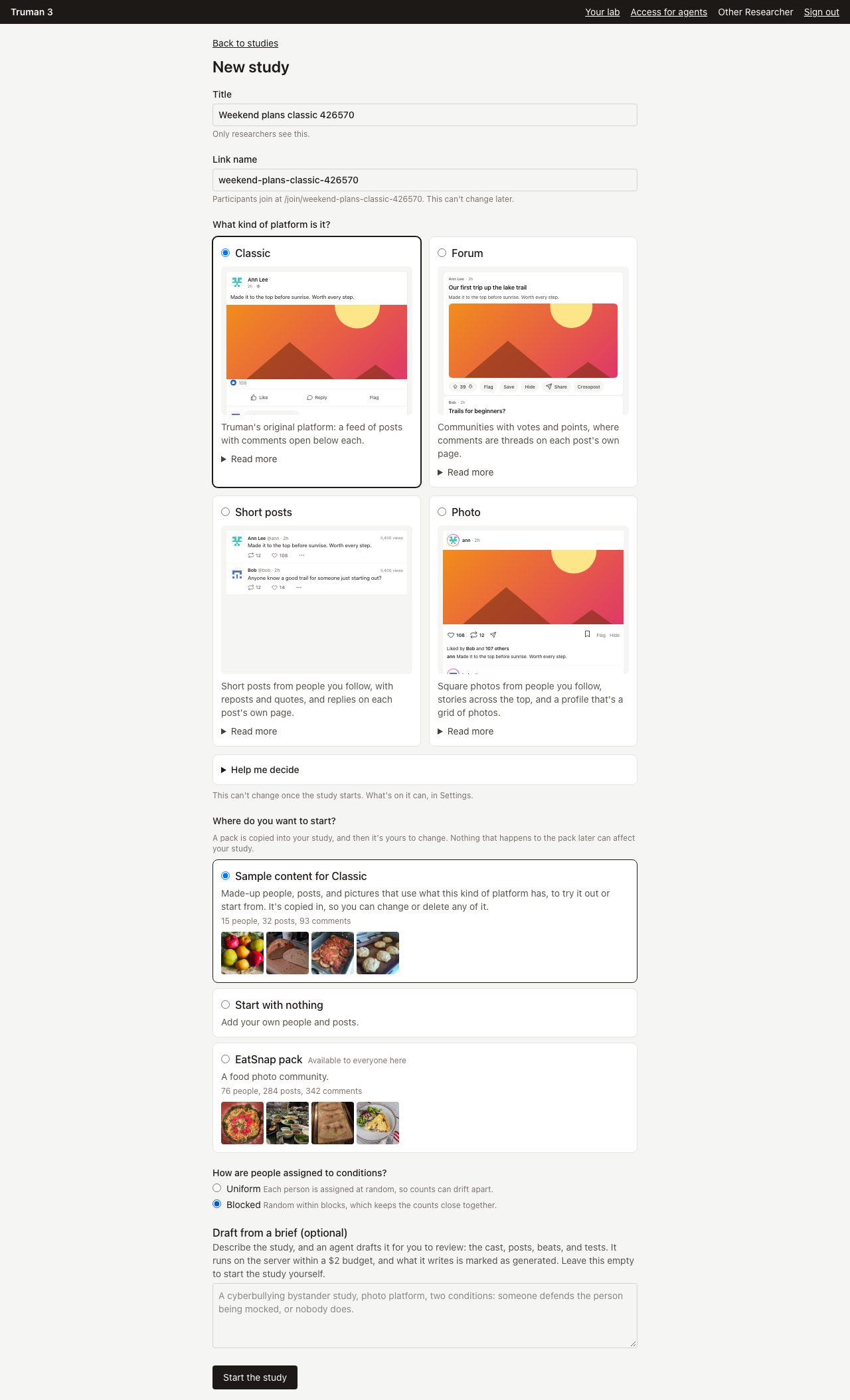
- On the Studies page, press New study.
- Fill in Title. Only researchers see it.
- Fill in Link name, using lowercase letters, numbers, dashes, or underscores. Participants join at
/join/followed by this name. It can't change later, so choose something a participant could see without learning what the study is about. - Under What kind of platform is it?, pick a card. Each shows a small sample of its posts. If you're unsure, open Help me decide. The kind can't change once the study starts.
- Under Where do you want to start?, choose Sample content for the kind you picked. It copies in made-up people, posts, and pictures, and a hello that arrives as a message, all of which you can change or delete. On hosted Truman the same list has the example studies, if you'd rather start from a finished one.
- Under How are people assigned to conditions?, choose Uniform or Blocked. Blocked keeps the group sizes close together. Either is fine for now.
- Leave Draft from a brief empty, and press Start the study.
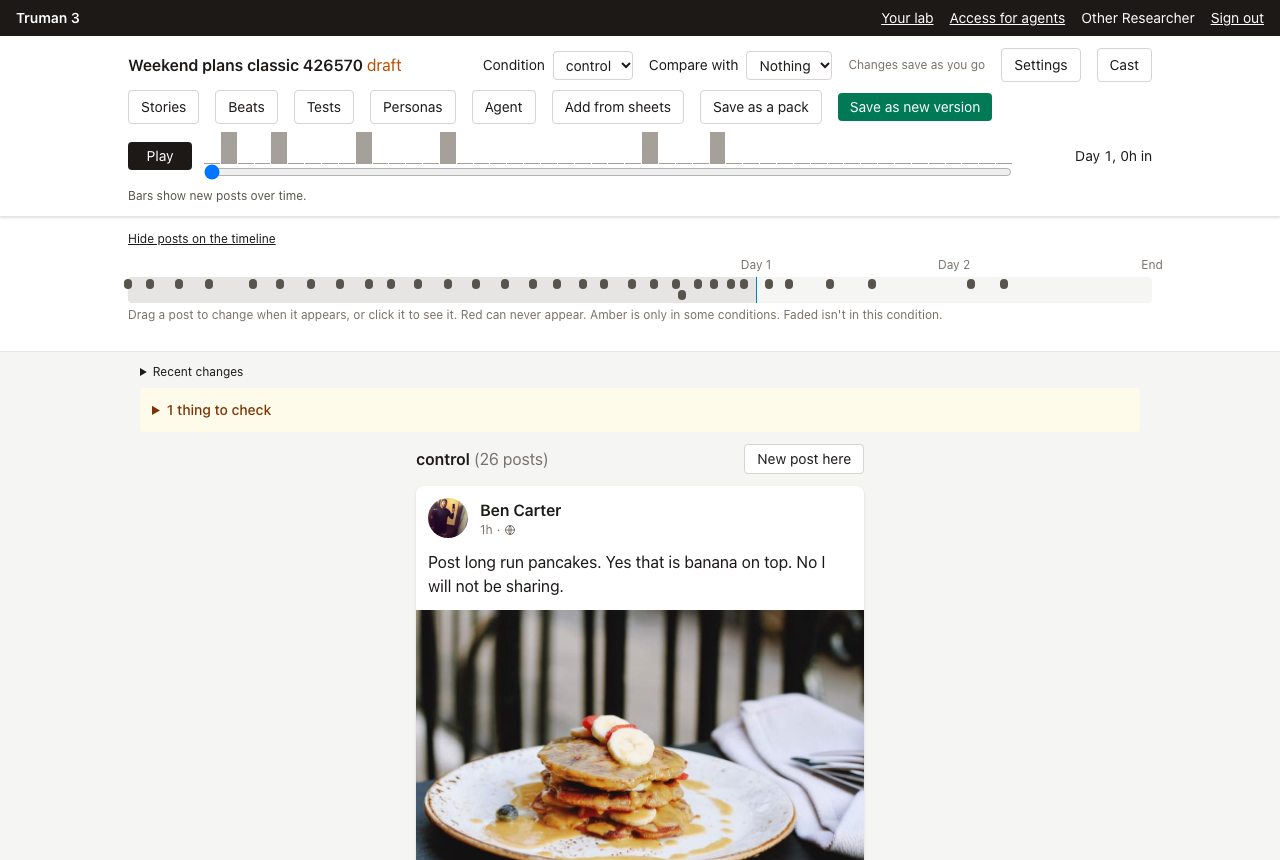
You land in the builder, looking at the feed as a participant would see it.
2. Change something
The builder is where you'll spend most of your time, so it's worth trying a few edits to see how it behaves.
- Click the text of any post and type. It saves when you click away. The top of the page says All changes saved when it has.
- Under a post, open Details to change who wrote it, when it appears, and how many likes it has.
- Move the slider at the top to see the feed at a later time in the study.
- Press Cast to see the people. Press Add a person to add one, then Back to the feed.
- Use New post here to write a post for someone in the cast.
If you make a mistake, open Recent changes and press Undo.
3. Write the consent page
- Press Settings.
- Scroll to Study flow. The first step is Consent, with a box of Page text.
- Replace the placeholder with a sentence or two for now. Before a real launch, this is where the text your IRB approved goes.
- Press Save changes on that card.
4. Save a version
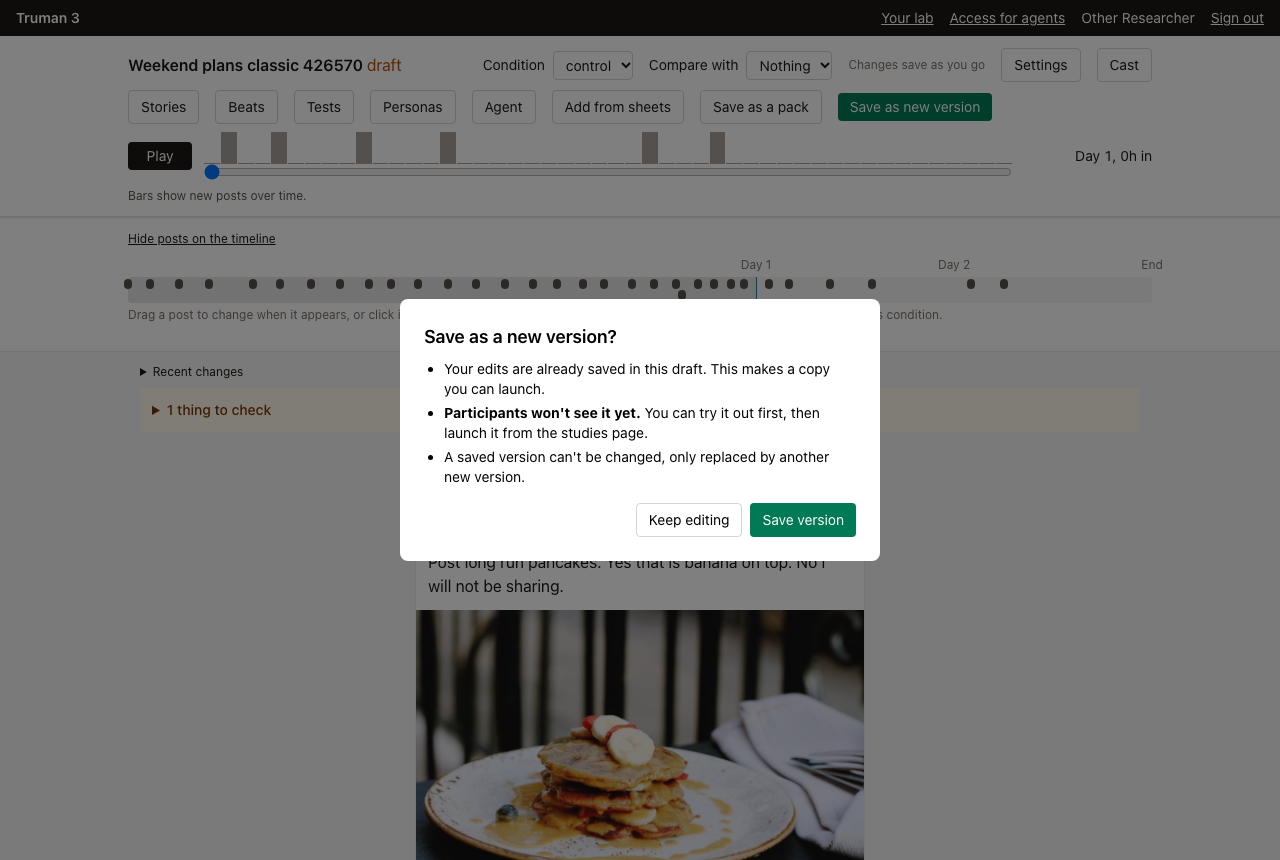
So far you've been working in a draft. A draft is where you work, and a version is a frozen copy that participants can be given.
- Go Back to the feed and press Save as new version.
- Read what it tells you. If anything needs fixing first, it's listed there.
- Press Save version.
Participants don't see a saved version until you launch it. You're taken back to the Studies page, where the version is listed under your study.
5. Go through it yourself
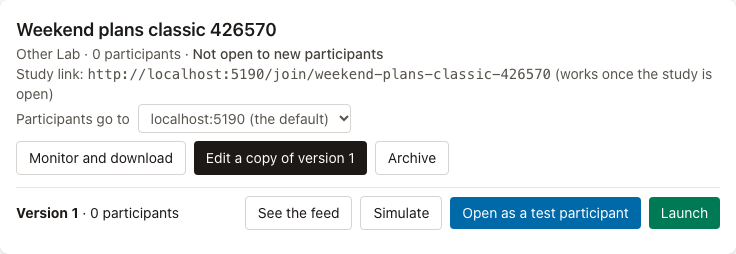
- On the Studies page, find Version 1 under your study.
- Pick a condition in the dropdown beside Try as a participant, then press the button.
- Press Open as a test participant. A new tab opens on the study.
- Go through it: agree to the consent page, make a profile, and scroll. Like something. Write a comment.
That link is the one to send yourself. You're a test participant, so nothing you do ends up in the study's data.
What to do next
From here, you can go in a few directions:
- Press Edit a copy of version 1 on the Studies page to go back to building. Saving again makes version 2.
- Add a second condition and limit a comment to it. See Conditions.
- Make someone in the cast reply to what the participant writes. See Making things happen.
- When the study is ready for real people, see Running a study. A lab on hosted Truman has to be approved before it can launch.
If you'd like to start from spreadsheets or from a folder of files, see Posts and the cast and Studies as files.