
Kinds of site
Every study is one of four kinds of site. The kind decides how the pages are laid out and which features start switched on. You choose it on the New study page, under What kind of platform is it?
The kind is permanent
The kind can't change once the study starts. The features can, in Settings.
| Classic | Photo | Short posts | Forum |
|---|---|---|---|
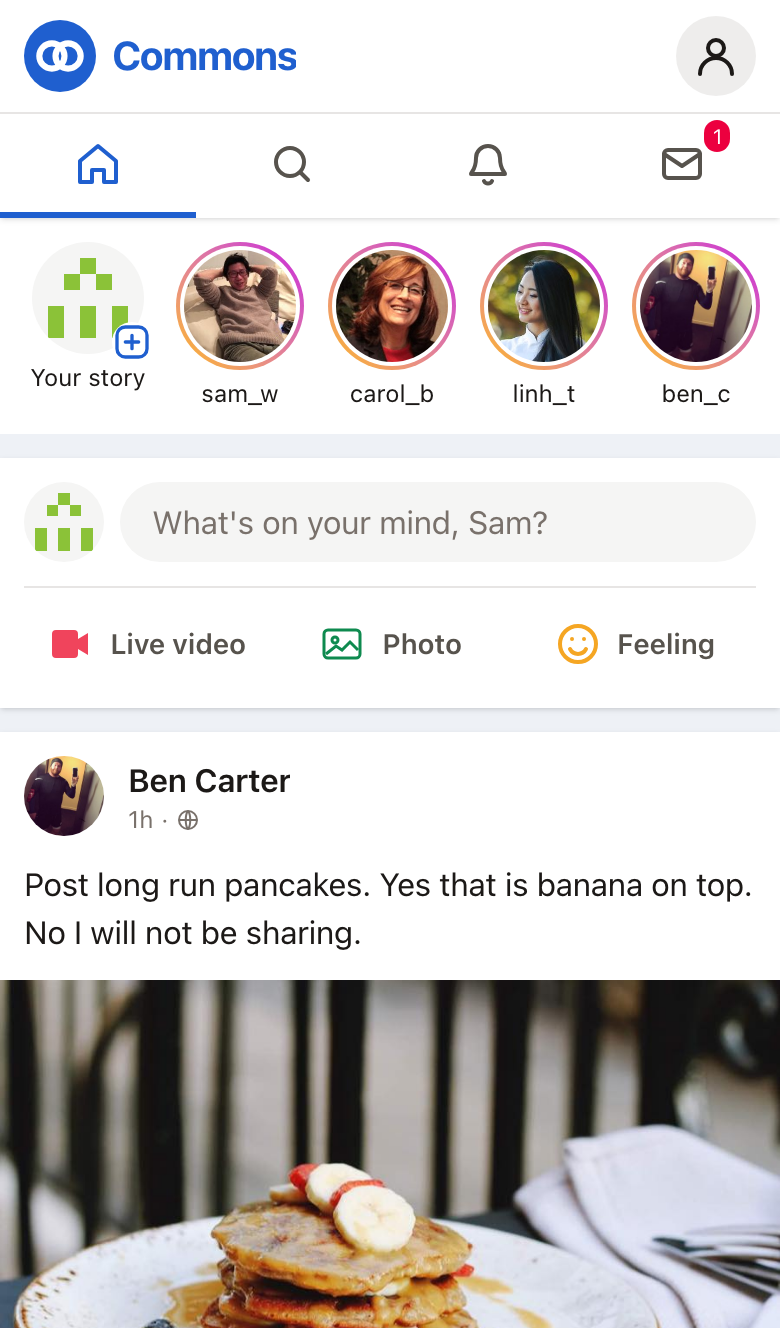 | 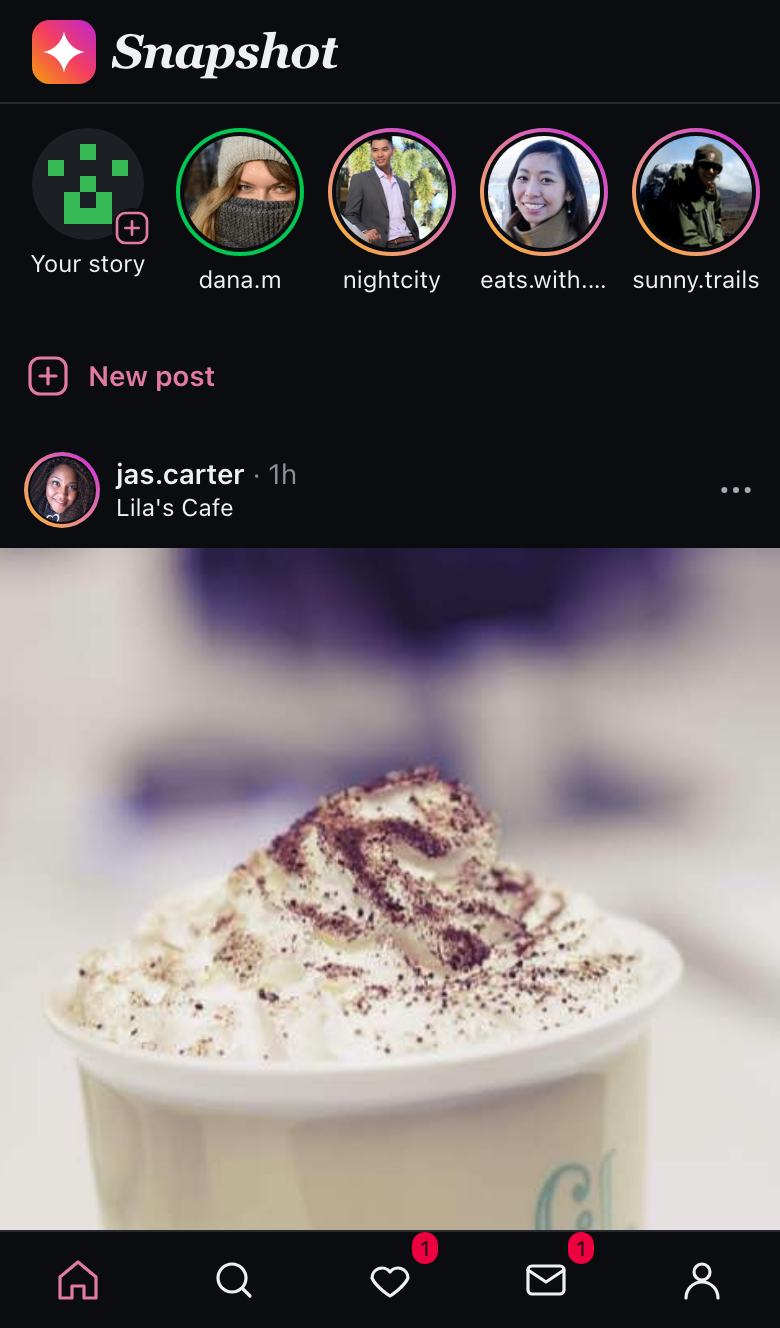 | 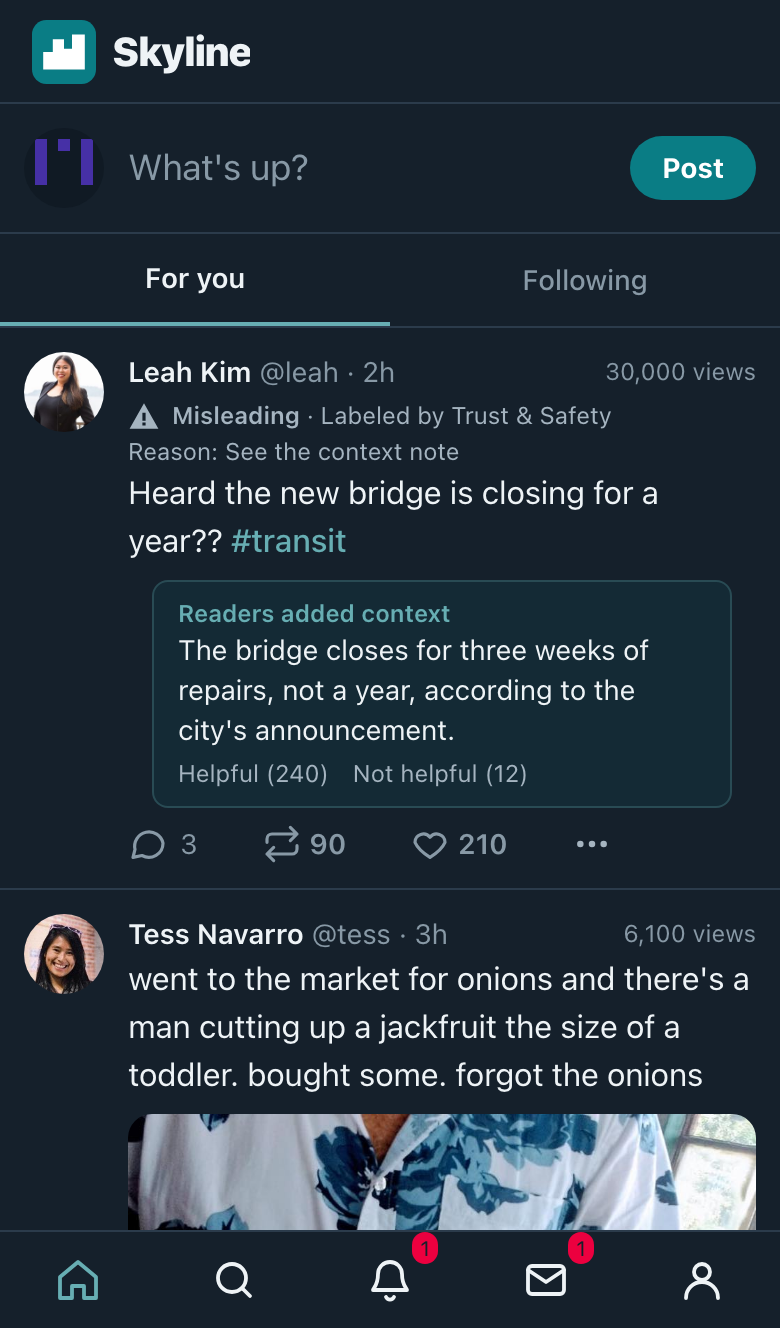 | 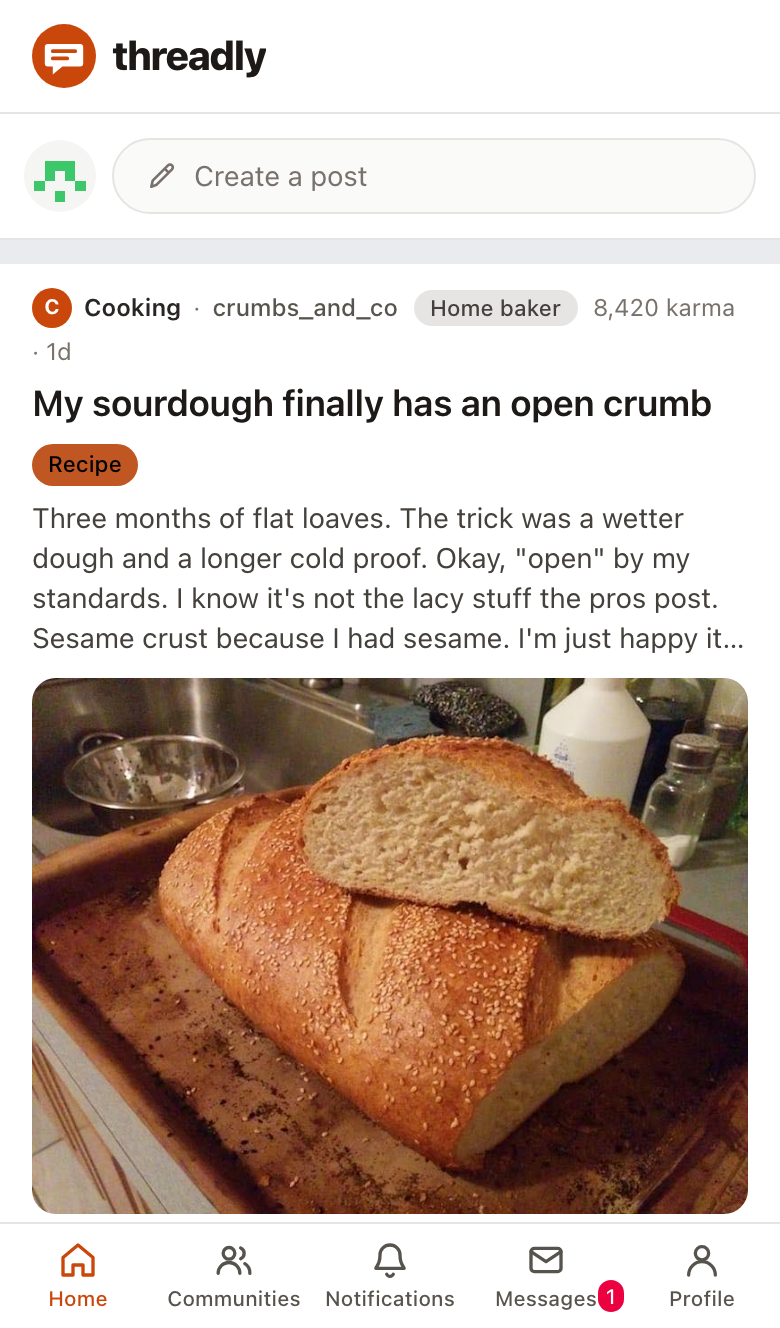 |
Each picture is the sample content for that kind, as a participant sees it on a phone. The kinds differ in more than layout: each has its own main color, its own icons, and its own way of starting a post, so two studies don't look like one site with the name changed.
The four kinds
Classic
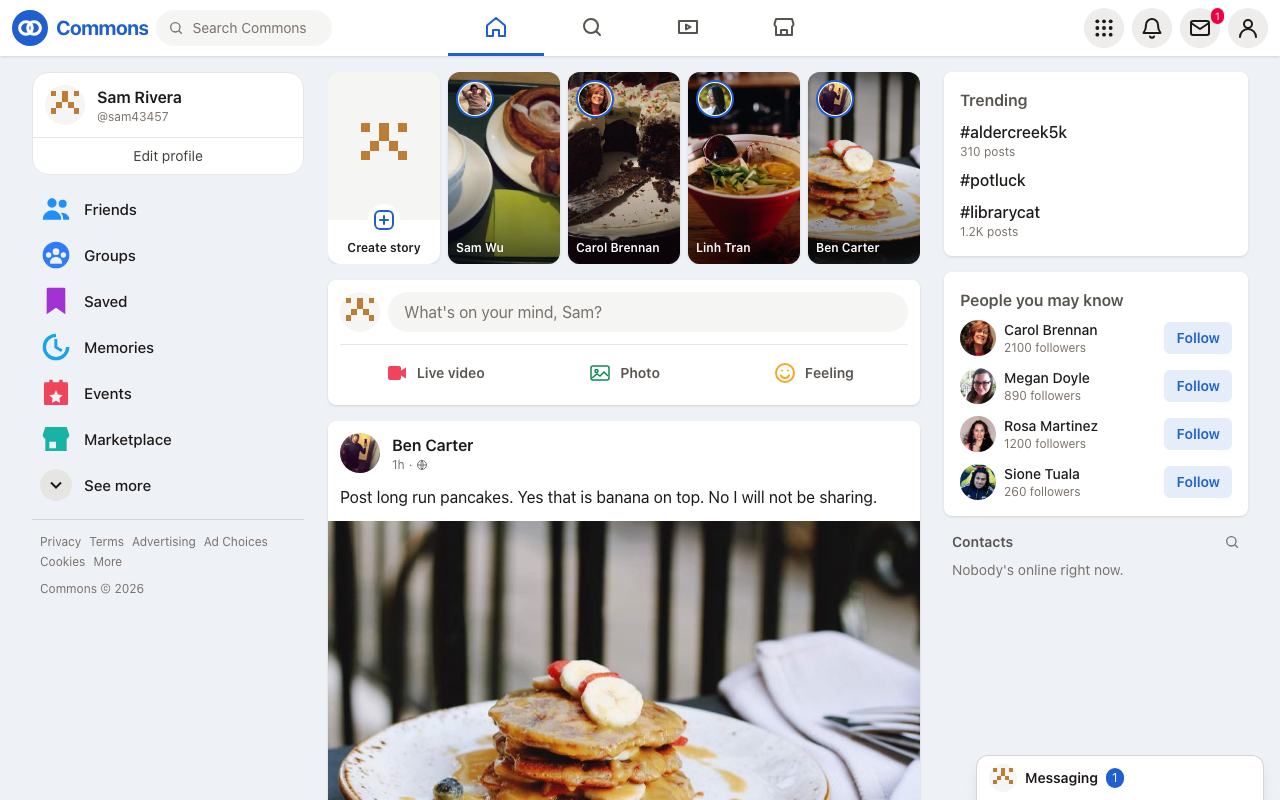
Classic looks like a community feed, such as Facebook or LinkedIn. Posts sit on cards in one column, with the person's name and picture at the top, a count of likes, and a row of buttons along the bottom. Comments are open under each post, so people read and reply without leaving the feed.
It starts with writing posts, comments, likes, flagging, following, blocking, reporting, and notifications. Everything else is off until you turn it on.
Photo
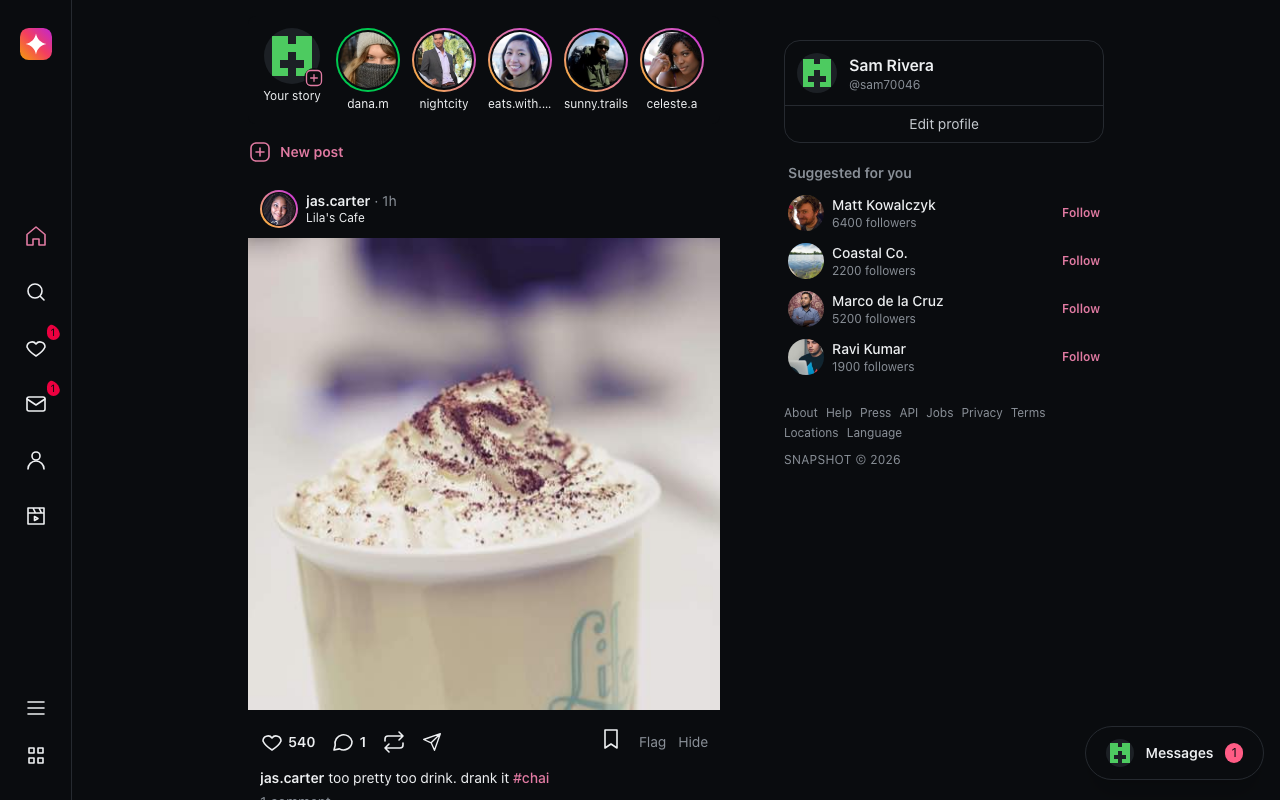
Photo looks like a photo app in a browser, such as Instagram. Square photos fill the column, with icons under each, who liked it, and the caption. Stories run across the top and open full screen. A profile is a grid of photos, and Explore is a grid of photos from people the participant doesn't follow.
On top of what Classic has, it starts with stories, highlights, close friends, places, tagging people, the profile and Explore grids, follower counts, reposts, hashtags, mentions, who to follow, and a page for each post, among others.
Short posts
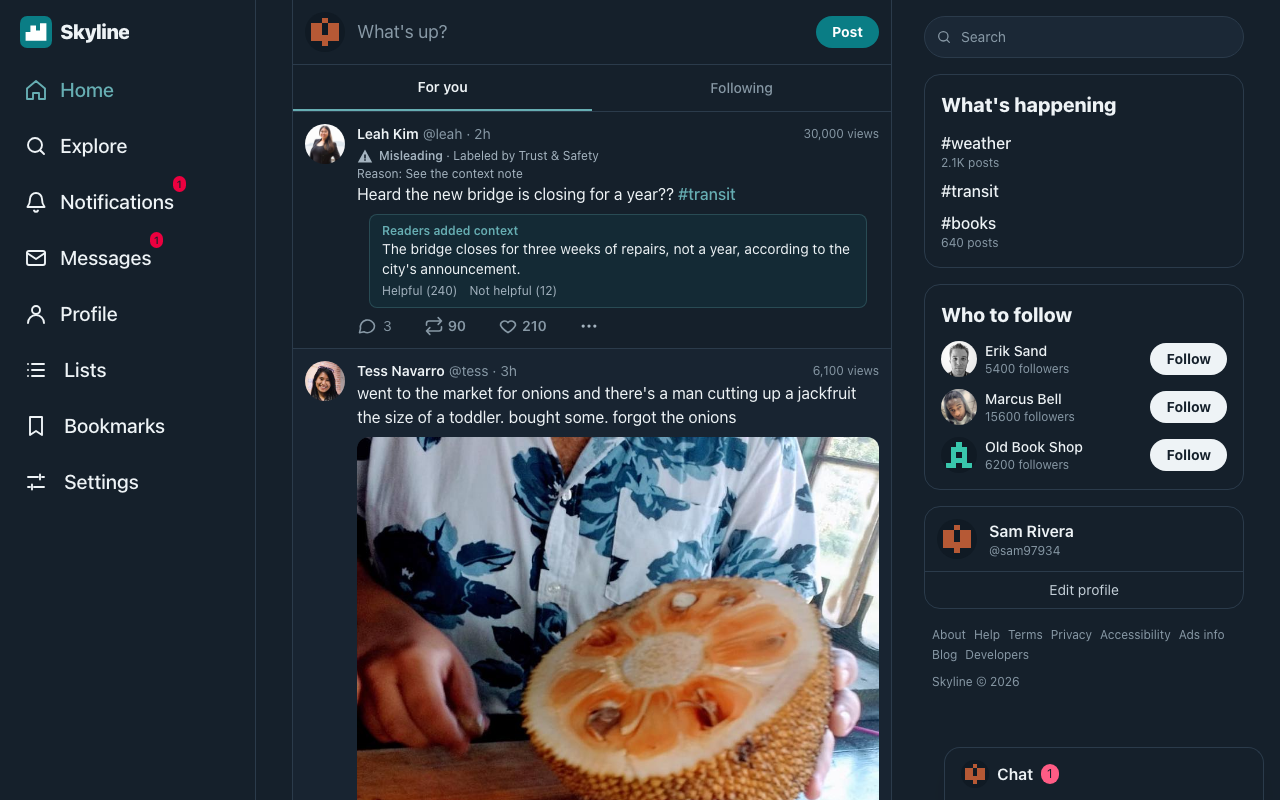
Short posts looks like a microblog, such as Bluesky or X. There's a menu of icons down the left, a narrow column of short posts, and small icons with counts under each. People pass posts along or quote them, and replies are on each post's own page.
On top of what Classic has, it starts with a following feed, reposts, quote posts, hashtags, mentions, trending, who to follow, view counts, badges, polls, link posts, context notes, and labels on posts, among others.
Forum
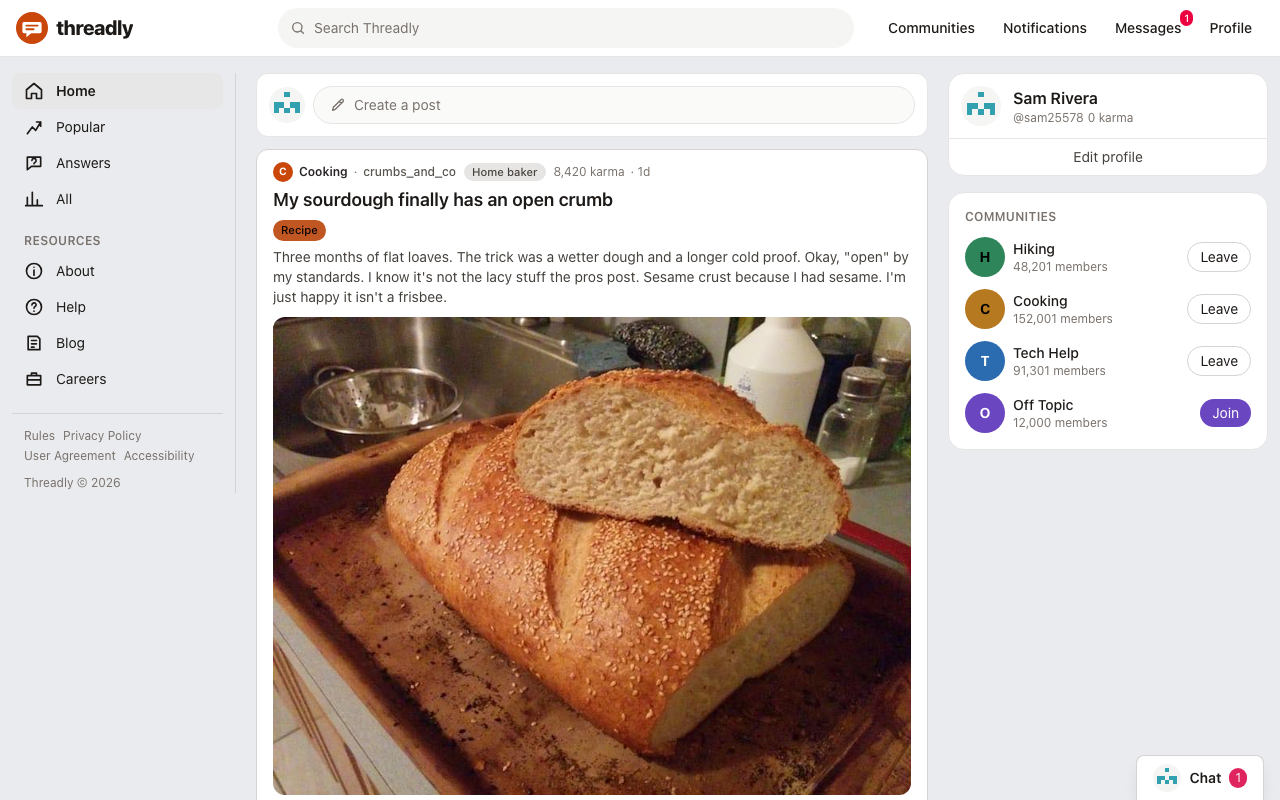
Forum looks like a discussion site, such as Reddit. Each post names its community, has a title, and has votes beside it. People open a post to read its comments, which nest as threads. Communities have their own pages, with a banner, rules, and moderators.
It has up and down votes where the others have likes, and following is off. It starts with spaces (the communities), titles, karma, flair, crossposting, polls, link posts, pinned and locked posts, and a public mod log, among others.
Photo, Short posts, and Forum also start with the moderation features on: removing, warning, banning, answering flags and reports, and automatic rules. They do nothing until you write some moderation. See Moderation.
Choosing
On the New study page, each card shows the same sample post drawn the way that kind draws it, which makes the four easy to compare. Press Read more on a card for a description and the full list of What people can do. If you still can't decide, Help me decide asks three questions about how the platform works and suggests a card:
- Do people belong to communities, each with its own page?
- Is every post a photo?
- Are posts short, and passed along with reposts?
Answer no to all three and it suggests Classic.
Choosing Sample content on the same page copies in made-up people and posts that use what that kind has, so you can see it working before you write anything. Each sample also has a few beats: someone sends a hello as you arrive and a couple of people follow you, so Messages and Notifications have something in them. They're on the Beats page, to change or delete like the rest.
Turning features on and off
The kind only sets where you start. To change what the site has, press Settings in the builder. The Study and platform card has a list under What's on this platform? with a tick box for each feature. Untick Comments and nobody can comment. Tick Direct messages and participants get a Messages page.
The same card has:
- Name of the site, which is what participants see as the name of the platform
- What kind of platform is this? with Mixed (posts can have text, a photo, or both), Photo (every post needs a photo), or Text (posts can't have photos)
- Light or dark? Classic and Forum start light, and Photo and Short posts start dark. Either way it's the same for every participant, unless you choose Whatever their device uses.
- Main color, for the site's name, links, and buttons. Each kind comes with its own: blue for Classic, pink for Photo, teal for Short posts, and orange for Forum. Pick another to match your logo, or to make two of your studies look like different sites.
- How do comment boxes appear? with Always open or After pressing Reply
- The most a participant can write in a post or comment. A short posts site might use 280.
Press Save changes on the card when you're done.
Menus and small print for show
A real site has more on the page than posts: a search box, a long menu, a place for messages in the corner, and small print such as About and Help. Each kind of site draws these the way that kind of platform does, so the study looks like a site people have been using.
Most of it is only for show. Pressing one shows a short note that it isn't available right now, as a real site does when part of it is down. The press is recorded as a decor.pressed event, with what was pressed and the page they were on. See Your data.
Some become real when your study has the page for them. Then they open it, and aren't for show any more.
Choosing what's shown. Under the list of features, the Study and platform card has What's shown for show? It lists everything your kind of site draws, grouped by where on the page it is.
- Untick anything you don't want.
- Under Your own, type a name, such as "Coupons", and press Add. It goes in the site's menu with its first letter as its icon. You can add up to 8.
To have none of it, untick Menus and small print for show under What's on this platform?
Here is what each kind draws.
Classic
| Where | What | Becomes real |
|---|---|---|
| Top bar | Search box, Video, Marketplace, Menu | |
| Menu | Memories, Events, Marketplace, See more | |
| Menu | Friends | Opens Explore when the study has trending, who to follow, or an Explore grid |
| Menu | Groups | Opens Communities when spaces are on |
| Menu | Saved | Opens their own page, where saved posts are, when saving is on |
| Post box | Live video, Feeling | |
| Beside the feed | Contacts | |
| Corner | Messaging | |
| Small print | Advertising, Ad Choices, Cookies, More | |
| Small print | Privacy | Opens the privacy page when the study has one |
| Small print | Terms | Opens the terms page when the study has one |
Photo
| Where | What | Becomes real |
|---|---|---|
| Menu | Reels, Also from us | |
| Menu | More | Opens the page where they edit their profile |
| Corner | Messages | |
| Small print | About, Help, Press, API, Jobs, Locations, Language | |
| Small print | Privacy | Opens the privacy page when the study has one |
| Small print | Terms | Opens the terms page when the study has one |
Short posts
| Where | What | Becomes real |
|---|---|---|
| Beside the feed | Search box | |
| Menu | Lists | |
| Menu | Bookmarks | Opens their own page, where saved posts are, when saving is on |
| Menu | Settings | Opens the page where they edit their profile |
| Corner | Chat | |
| Small print | About, Help, Accessibility, Ads info, Blog, Developers | |
| Small print | Terms | Opens the terms page when the study has one |
| Small print | Privacy | Opens the privacy page when the study has one |
Forum
| Where | What | Becomes real |
|---|---|---|
| Top bar | Search box | |
| Menu | Answers, All, About, Help, Blog, Careers | |
| Menu | Popular | Opens Explore when the study has trending, who to follow, or an Explore grid |
| Corner | Chat | |
| Small print | Accessibility | |
| Small print | Rules | Opens the rules page when the study has one |
| Small print | Privacy Policy | Opens the privacy page when the study has one |
| Small print | User Agreement | Opens the terms page when the study has one |
On every kind, the search box goes to a hashtag's page when hashtags are on, and the corner opens Messages when direct messages are on.
A feature can also differ between conditions, so likes can be on in one condition and off in another. See Conditions.
The builder also warns you about leftovers, such as written comments that won't show because comments are off in a condition.
A few features worth knowing about
- Direct messages are off in every kind until you turn them on. They're between the participant and one person in the cast.
- Spaces are communities that posts belong to. Once they're on, a Spaces button appears in the builder. Stories get a Stories button the same way.
- Ads are posts you mark with a label such as Sponsored. Clicking their link is recorded.
- Adult content tags cover a post until someone clicks it. There's no age check, so talk to your IRB first.
The feed
The Feed card in Settings controls how the feed behaves for everyone: How long is the study? (days), What order is the feed in?, how far back the feed reaches, and the like counts posts start with.
None of these have hidden defaults copied from a real platform. If your study doesn't turn a behavior on, it doesn't happen. Whatever you chose is saved with the version, so you can report it in your methods.