
Posts and the cast
A Truman site needs people on it, and those people need to have been posting. This page covers both. You can write them one at a time in the builder, or fill in spreadsheets and upload them, and most studies do some of each.
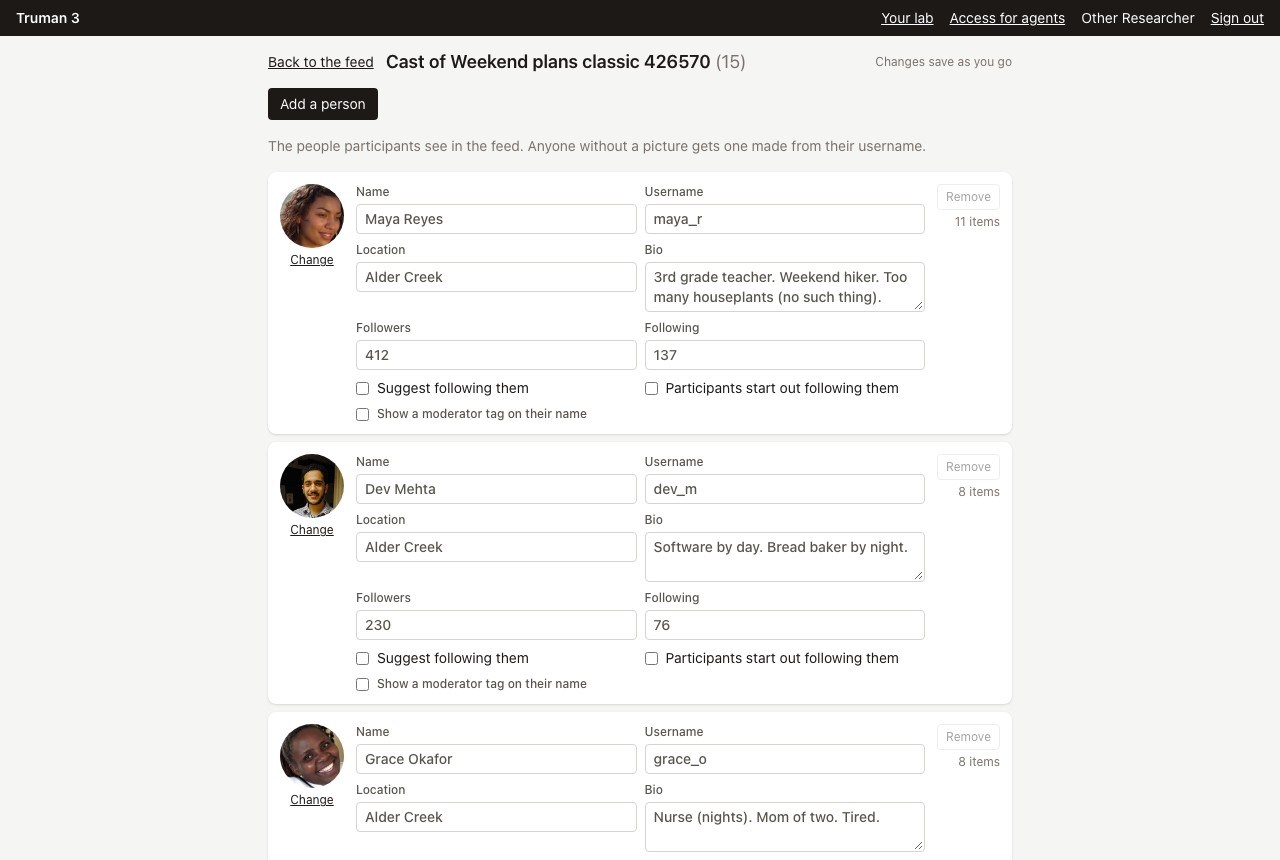
The cast
The cast is everyone on the site who isn't a participant. To work on it, press Cast in the builder.
- Press Add a person.
- Fill in Name, Username, Location, and Bio. Each saves when you click away.
- Click their picture to choose one. Anyone without a picture gets one made from their username.
Depending on what your site has on, a person can also have Followers and Following counts, a Badge, Karma, and a banner. There are tick boxes too:
- Participants start out following them
- Suggest following them
- Show a moderator tag on their name, for the account that does your study's moderation
A person who still has posts or comments can't be removed, so delete what they wrote first.
Posts and comments in the builder
The builder shows the feed as a participant would see it, and everything in it can be clicked.
- Write a post: press New post here. You need someone in the cast first.
- Change the words: click the text and type. It saves when you click away.
- Add a comment: under a post, choose who writes it, type in Add a comment..., and press Add. Use Add a reply under a comment for a reply.
- Everything else: open Details under a post or comment. Written by is the author. Appears at is the time. Likes is the count it starts with. Shown in limits it to some conditions. Delete this post is at the bottom.
Details also holds whatever your site's features add to a post, such as a link, a poll, a place, or an ad label.
Every change is listed under Recent changes, with who made it and an Undo button. You can work alongside a teammate, too. If one has the same draft open, you'll see Also here with their name, and their changes appear within a couple of seconds.
Pictures
Drop a photo on a post where it says Drop a photo here, or press or choose one. Replace photo and Remove photo appear once there's one. On a site with several photos on a post, Add another photo adds more.
Timing
Every post and comment has a time in hours:minutes, counted from the moment each participant starts. 2:05 means two hours and five minutes in, and 26:00 is two hours into day 2.
A time can be negative. A post at -40:00 was "written" forty hours before the participant arrived, so it's already in the feed when they sign up. This is how a site looks lived-in on the first visit.
To see and change timing across the whole study:
- Press Show posts on the timeline. Every post is a mark on a line through the study.
- Drag a post to change when it appears, or click one to see it in the feed.
- Move the slider at the top to see the feed as it stands at any moment.
The colors tell you where to look. Red posts can never appear, because they're timed after the study ends or fall outside how far back the feed reaches. Amber posts are only in some conditions. The study's length and the feed's reach are on the Feed card in Settings.
Like counts
A post or comment can have its own Likes number. For the rest, the Feed card in Settings has Likes on posts and Likes on comments. Type a list such as 1, 1, 2, 3. Each item without its own count draws one of those numbers, so repeat a number to make it more likely.
Spreadsheets
For a big cast or a long feed, spreadsheets are faster than clicking.
- In the builder, press Add from sheets.
- Press Download the sheets. You get one sheet for each thing your kind of site has: the cast, posts, comments, and whatever else is on, such as communities, stories, or moderation. Each has example rows.
- Fill them in with Excel or Google Sheets and save as CSV.
- Zip them up with their pictures, as the sheets explain, and choose the zip.
- Press Add to the draft.
An upload adds to the draft and changes nothing that's already there. It's also all or nothing: if row 40 has a problem, nothing is added and you're told what to fix. You can undo an upload from Recent changes.
The cast sheet looks like this:
username,name,bio,location
maya_r,Maya Reyes,Teacher. Weekend hiker. Too many houseplants.,"Denver, Colorado"
dev_patel,Dev Patel,Software by day. Bread baker by night.,"Austin, Texas"
And posts:
id,actor,time,body,picture,likes
c1,maya_r,-40:00,Made it up the lake trail before sunrise. Worth every step.,lake-trail.png,34
c2,dev_patel,-36:30,"First loaf from the new starter! Crust came out better than I expected.",,12
The comments sheet points at a post by its id.
Responses to the participant
One sheet, reactions.csv, scripts what the cast does to the participant's own posts. This row has Grace reply to the participant's first post eight minutes after they write it. nth counts from 0.
on,nth,type,actor,after,body
post,0,reply,grace_o,0:08,Welcome! Glad you're here.
For anything more involved, such as a reply only in one condition or only if something else hasn't happened, use beats. See Making things happen.
Reusing a cast
Once you have a cast you like, you can reuse it. Press Save as a pack in the builder to keep the people, posts, and comments as they are now. Your team can then start other studies from the pack on the New study page. A pack is copied in, so changing one study never changes another.
A study can also be kept as a folder of these same sheets. See Studies as files.